Teams kiosk mode
Kiosk mode for self‑checkout and donations
Turn a phone, tablet or Stripe smart reader into a self-serve station. Customers pick a product or type an amount and pay on their own while staff stay nearby. Your headline, your photo, a fresh screen after every payment.Included in the Teams Business and Nonprofit plans.
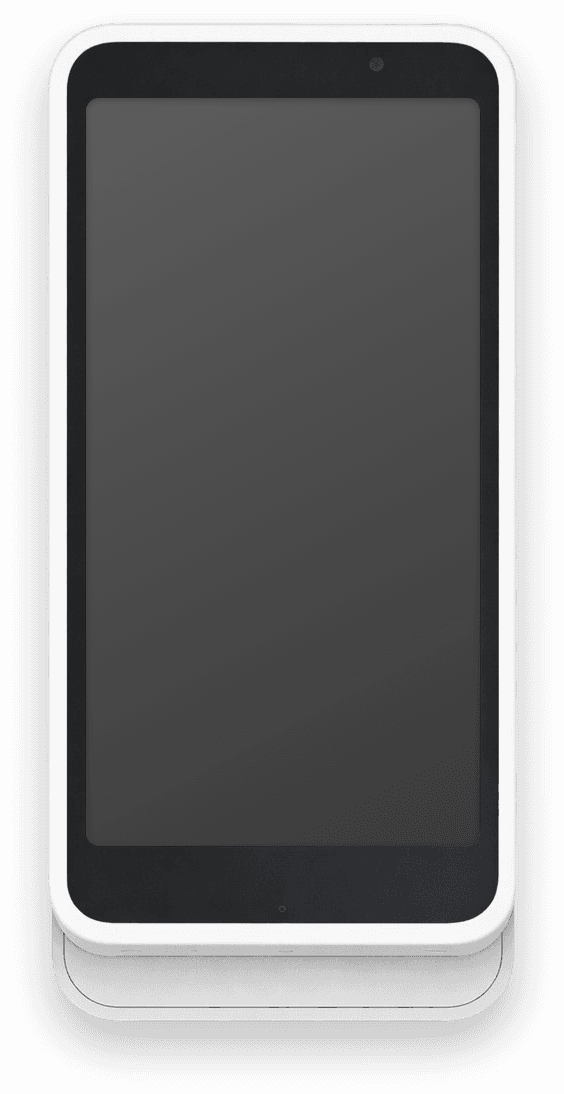

Customers pick a product or type an amount and pay on their own while staff stay nearby. Your headline, your photo, a fresh screen after every payment.
Included in the Teams Business and Nonprofit plans.
Setup
Set up a self-serve kiosk in three steps
- 1
Allow it in Teams
On the Teams website, open App Customization, turn on Allow kiosk mode, then set a 4-digit exit PIN. Optional: a headline and photo, with a live preview of the welcome screen, and the name and email form. - 2
Turn it on at the device
iPhone or iPad: open the menu, then Enable kiosk mode. Android: Settings, then Enable kiosk mode. Enter the PIN. Smart readers have their reader built in; phones and tablets need Tap to Pay or a connected reader. - 3
Customers pay on their own
They pick a product or tap Other amount, then tap, insert or swipe. The screen resets after every payment. To leave, hold the top-right corner for 3 seconds and enter the PIN.
Locked down
What customers can do at a self-checkout kiosk
Kiosk mode shows products, the keypad and the card prompt. Everything else stays behind the exit PIN.Typed amounts go up to 1,000 in the account’s currency; products aren’t capped. Recurring prices are hidden in kiosk mode: one-time prices only. Links that open the app are ignored.
| On the device | Customers | Staff, kiosk off |
|---|---|---|
| Pick a product or type an amount | ||
| Tap, insert or swipe a card | ||
| Get an email receipt | ||
| Menus and settings | × | |
| Sales history and refunds | × | |
| Customer list | × | |
| Typed card numbers | × | |
| Cash, invoices and payment links | × | |
| Sign out or switch accounts | × |
Hardware
The right device for a checkout or donation kiosk
Stripe smart readers are the best fit: one device, card reader built in, offline payments. Tablets work well too; phones work, but a bigger screen is easier for customers.| Device | S700, S710, T600 | iPad | Android tablet | Phones |
|---|---|---|---|---|
| Takes cards on its own | × | Tap to Pay | Tap to Pay | |
| Insert and swipe | With a card reader | With a card reader | With a card reader | |
| Offline payments | With a card reader | With a card reader | With a card reader | |
| Screen locked to the app | Guided Access | Screen pinning |
Customer records
Every kiosk payment, on record in Stripe
After paying, customers can type an email for a receipt, plus a name and a donor ID if you ask for one.- The receipt is Stripe’s standard email receipt, sent to the address entered. Customers can skip it.
- Name, email and donor ID are saved on a Stripe Customer. Donor ID is free text: a bidder number, member number or tax ID.
- Every kiosk payment carries kiosk: true in its Stripe metadata, so you can filter and report on it in the Stripe Dashboard.
- For a faster line, turn off Ask for name and email after payment in Teams. The form stops opening on its own; customers can still tap for a receipt.
FAQ
Kiosk mode questions
What if staff forget the exit PIN?
A Teams owner sets a new PIN on the Teams website. It works right away: the PIN pad checks for a new PIN before saying it’s wrong. After 5 wrong tries the PIN pad waits 60 seconds, doubling up to 15 minutes.
Does a kiosk work offline?
Yes, with a Stripe smart reader or a Bluetooth reader. The receipt form isn’t offered while offline.
Do customers get a receipt?
Yes, by email. With Ask for name and email after payment on (the default), the receipt form opens on its own after Thank you: customers type an email and get Stripe’s standard receipt, or tap Skip. With it off, they tap the receipt button on the payment result.
Can someone type any amount?
No. Other amount is capped at 1,000 in the account’s currency, and the cap is fixed. Products aren’t capped: for a bigger amount, add a product. The keypad tells customers when they go over the cap or under the minimum.
How do I stop people leaving the app?
On iPhone and iPad, turn on Guided Access (Settings > Accessibility > Guided Access), then triple-click the side or Home button. On Android, the app pins the screen; turn on Ask for PIN before unpinning. Tap to Pay on Android can’t pin the screen, so use a card reader for a locked-down kiosk. Stripe smart readers are locked to the app already.
Can I run more than one kiosk?
Yes. Kiosk settings apply to every device on your Teams account. Devices pick up changes when the app reopens or the menu or Settings opens. A kiosk on its welcome screen updates within about 15 minutes, never mid-payment.
Does someone need to watch the kiosk?
Kiosk mode is self-serve with staff nearby: someone close by to help a customer, swap a card reader or pause the kiosk with the PIN.
What happens if my Teams plan lapses?
Devices show “Payments are unavailable right now”. Staff can still exit kiosk mode with the PIN.
Can donors set up a monthly gift?
Not at the kiosk yet. Kiosk mode takes one-time payments; recurring prices are hidden.