Brand your payment experience
Configure your logo, colors, and business details in Stripe Dashboard. Your branding automatically applies to all receipts, invoices, and payment pages sent through Payment for Stripe.
Last updated October 2026
Quick answer
Add your logo, brand color, and a custom receipt message in Stripe's branding settings. Your Payment for Stripe checkout and receipts then match your brand.
Official documentation: Stripe branding settings
From the blog: Make the Payment app match your brand
Connected
Stripe Account
How to get started
Follow these 4 simple steps to get up and running.
Open your Stripe Dashboard
Log into your Stripe Dashboard and navigate to Settings > Branding. This is where you'll configure all visual elements that appear on receipts, invoices, and payment pages.
Upload your business logo
Click "Upload Logo" and select a square image. For best results, use a high-resolution PNG or JPG at least 512x512 pixels. Your logo appears on all receipts and invoices sent through Payment for Stripe.
Set your brand colors
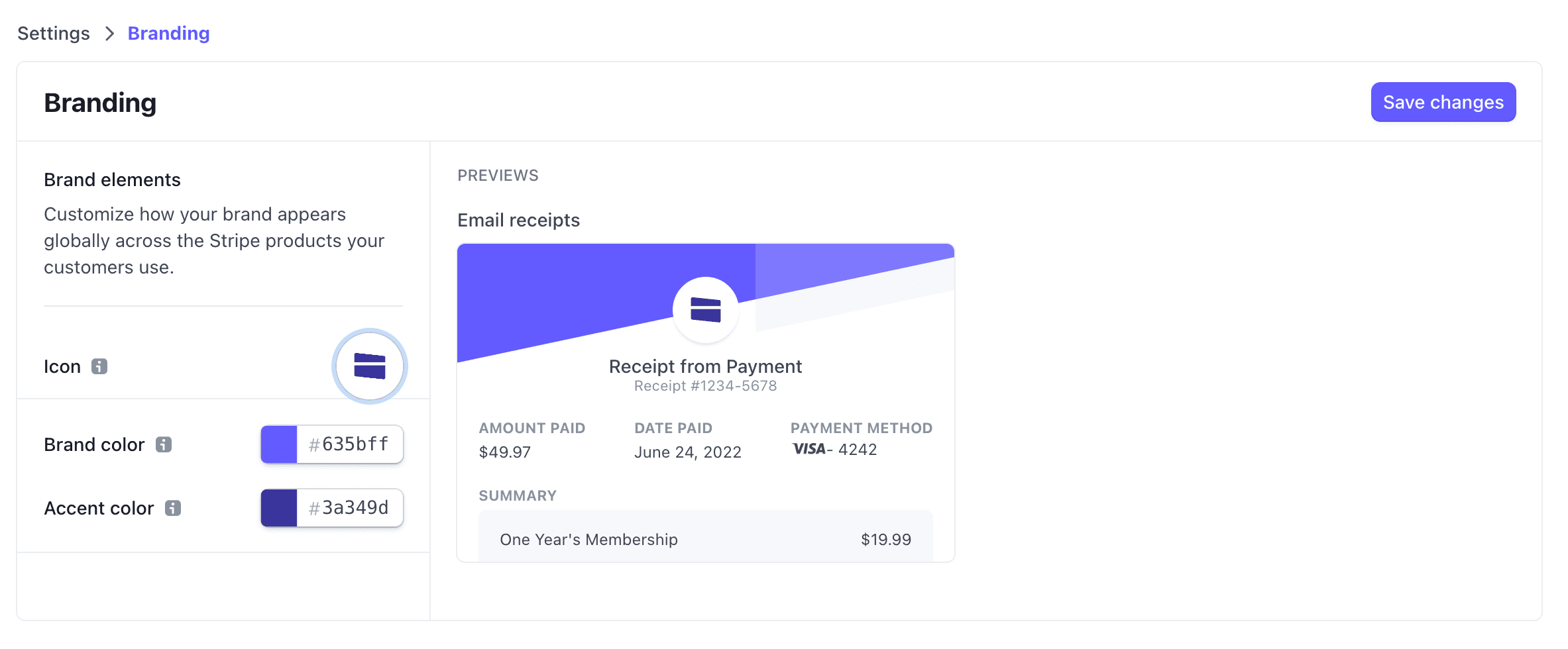
Choose primary and accent colors that match your brand. These colors appear on Stripe-hosted payment pages, receipts, and invoices. Enter hex codes for precise color matching.
Add business details
Enter your business name, support email, and address. These details appear on receipts and help customers identify your business. Changes sync automatically to Payment for Stripe.
Customize your brand colors in your Stripe Dashboard
Common questions
How do I add a logo to Stripe invoices?
What are the logo requirements?
Can I use different branding for different products?
How quickly do branding changes appear?
Ready to get started?
Download the free app and start accepting payments in minutes.